
See (L2) First Week Issues Script for guidance on how to navigate this conversation with a customer.
We should be offering a replacement meal first and if that is not okay then we can go into offering a credit or to move the billing date.
We are able to credit an account if a customer receives a meal with an excluded item, didn't receive a meal, or received a damaged item.
Open a customers subscription page and look at the subscription information. We need to first identify how many meals per day, and how many days per week the customer is receiving deliveries.
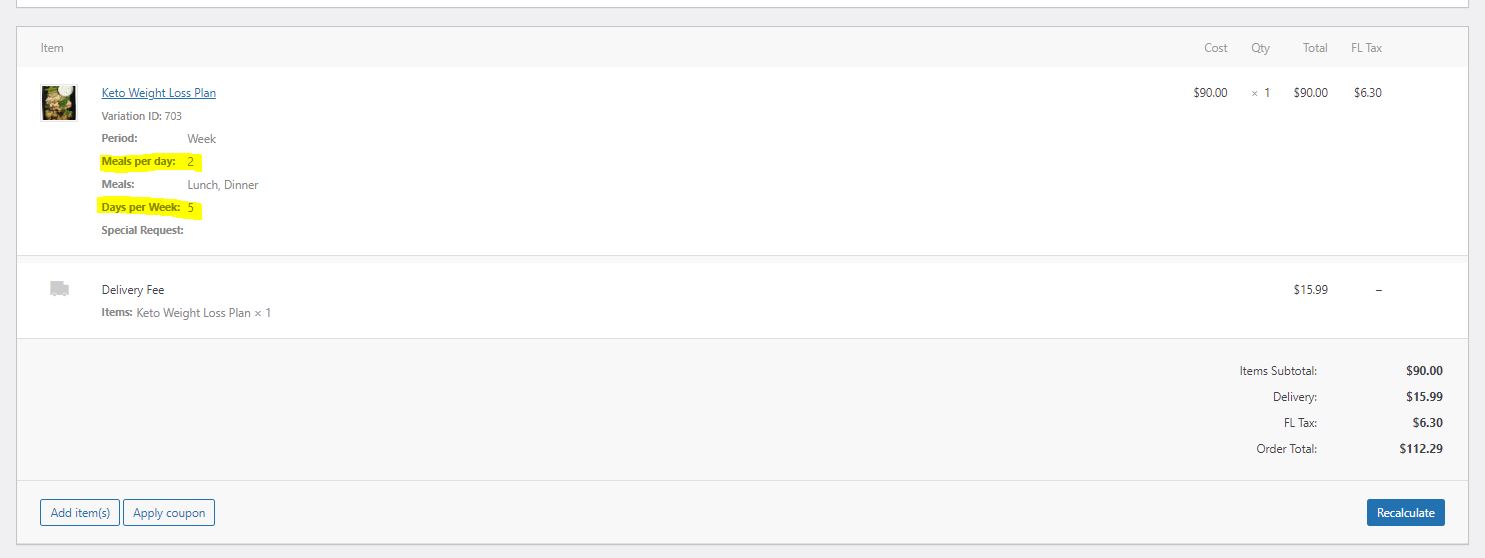
In this example the customer is receiving 2 meals per day: Lunch & Dinner. The customer is also receiving deliveries Monday - Friday (5 Days).
2 (Meals per day) X 5 (Days) = 10 meals per week
Now that we know this customer is receiving 10 meals per week, lets find out how much the customer is paying for each meal. To do this we will divide the cost of meals alone by the number of meals they receive per week.
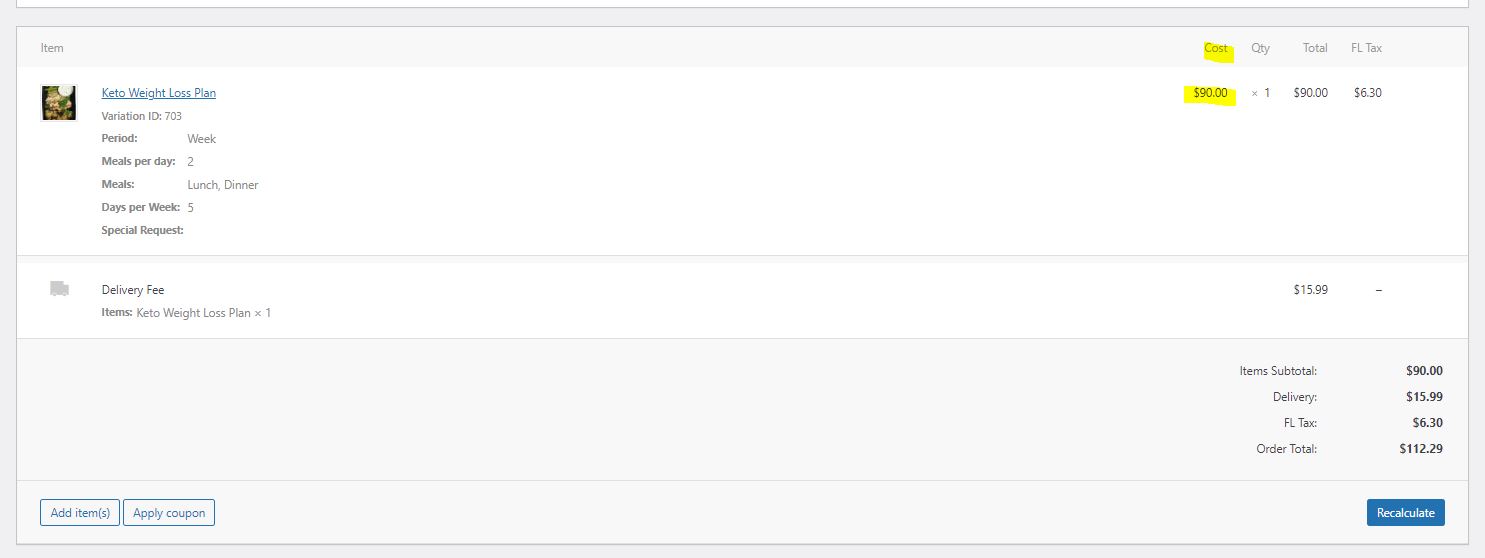
90 ÷ 10 = 9
Each meal will cost the customer $9.00
You will then need to multiply the number of meals we are crediting back to the customer by the cost per meal. Lets say we are crediting the customer for two meals.
2 X 9 = 18
To apply this $18.00 credit we need to apply a coupon. You will find the on the bottom left of the subscription information box:
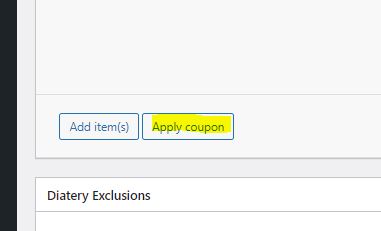
Selecting "Apply Coupon" will trigger a pop up box to appear where you will type in the code necessary to apply this credit.
Code: RMC
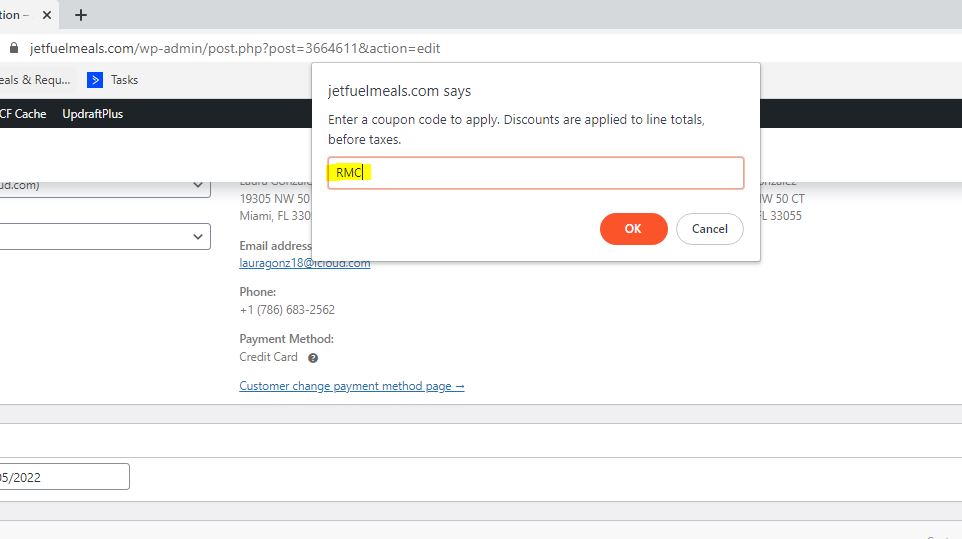
Select "Okay" to save the code on the subscription. You will then see the code added to the subscription information box, and you will see a discount of $0.01 appear under the meal plan total.
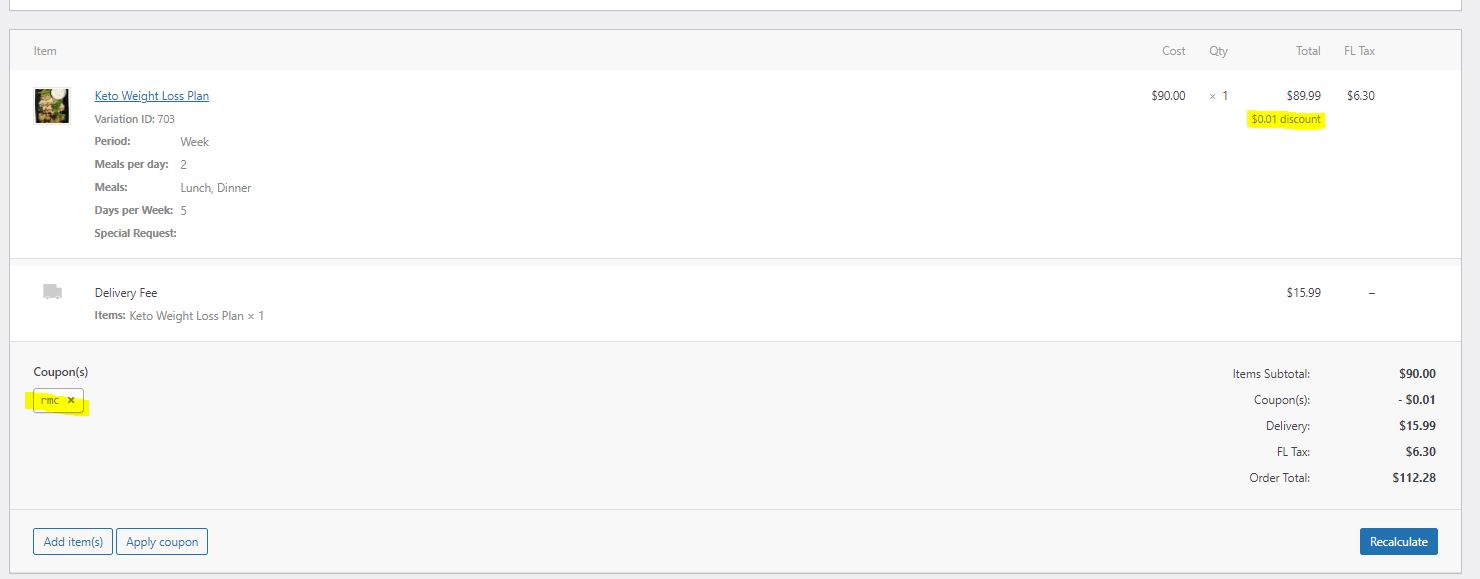
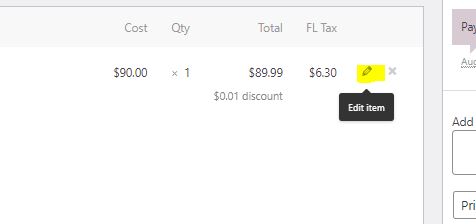
You will now be able to adjust the price by hovering your mouse over to the right of the meal plan totals. When you hover to that corner you will see a pencil tool appear.
After selecting the pencil tool you will see the total price box open for you to edit.
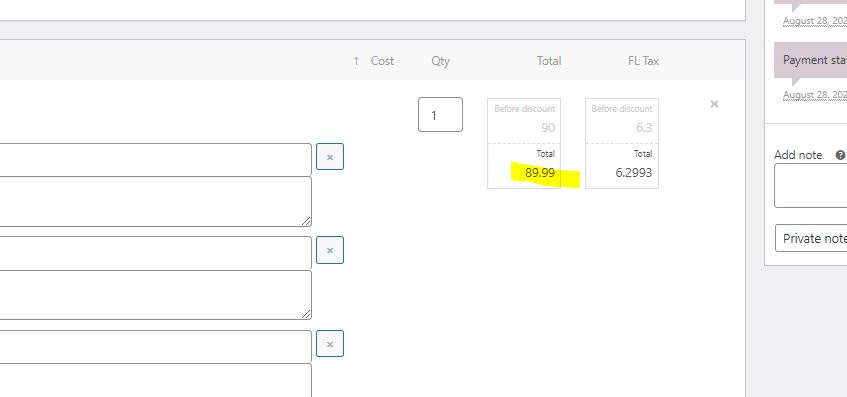
Here we need to adjust the total by first subtracting the full total cost of meals by the amount we are crediting.
$18.00 - $90.00 = $72.00
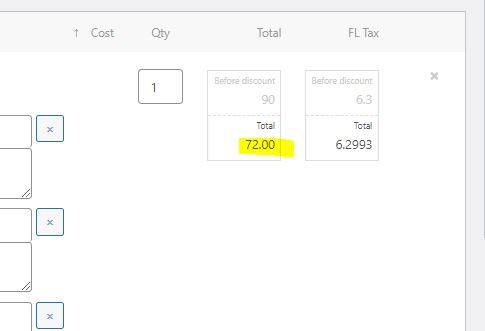
After you change the total to $72.00, select "Save" at the bottom right of the subscription information box. Notice that the totals will not be updated until after you save.
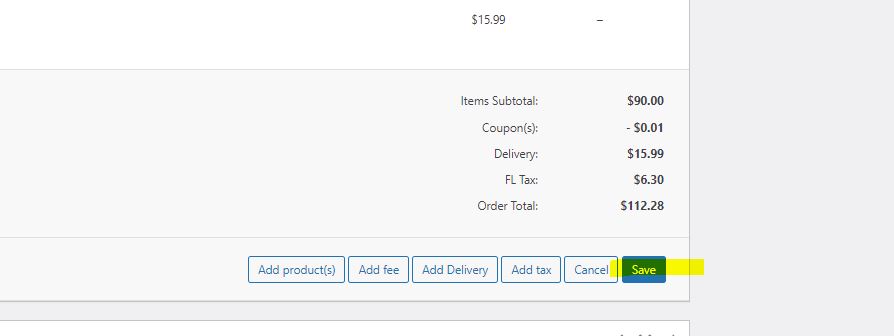
After saving you will see the discount change from $0.01 to the total we need to credit the customer, in this case $18.00
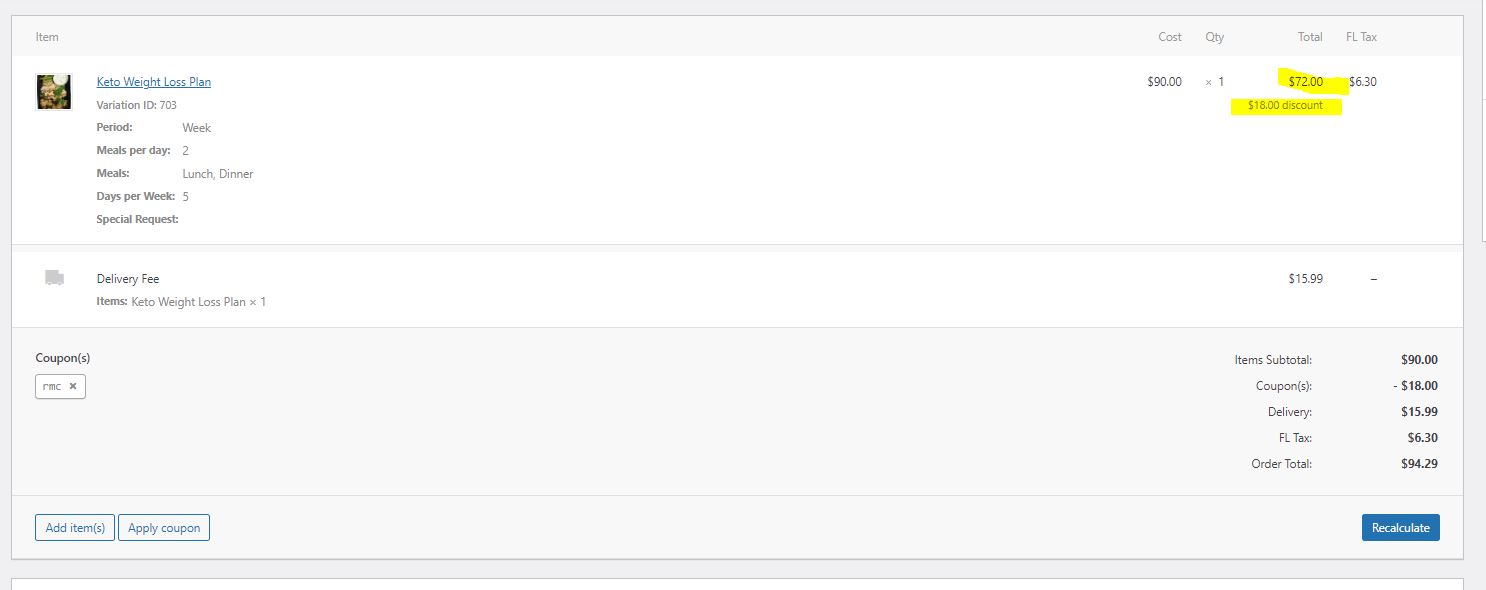
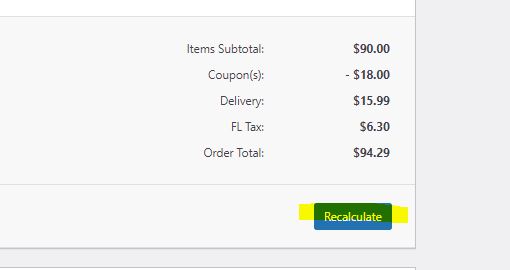
Before we can complete this request we need to select "Recalculate" at the bottom right of the subscription information box. This is going to recalculate the taxes and adjust the total price that will be billed on the next renewal.
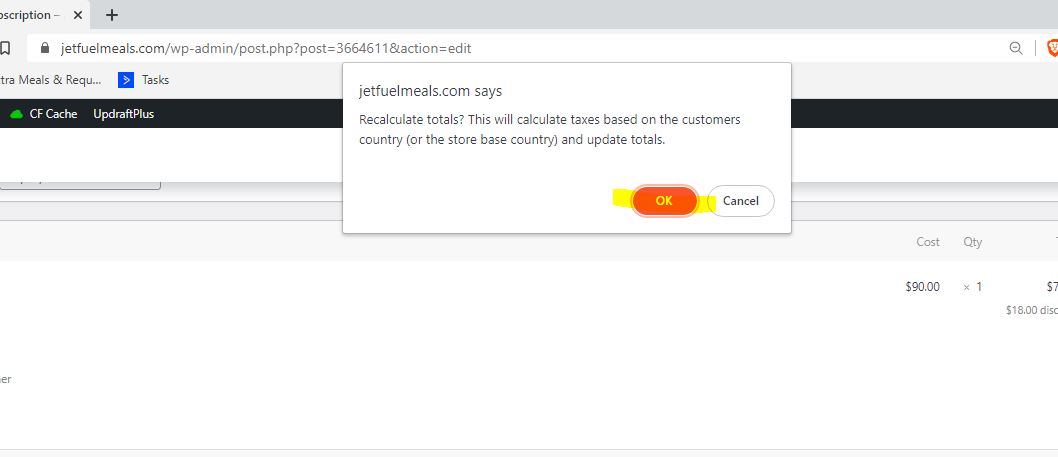
A popup window will appear to ask you for confirmation, go ahead and select "Okay"
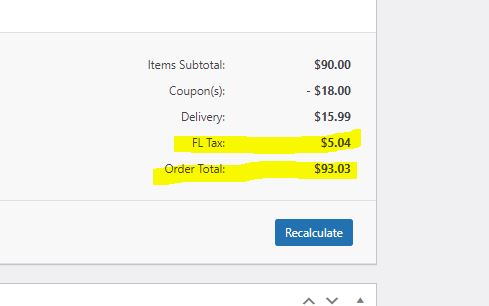
After confirming you will see the totals update accordingly:
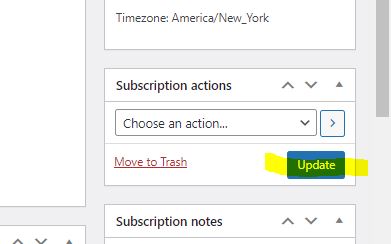
You can now leave your notes on the subscription and save everything by selecting "Update".
But what if the account has a coupon applied? You will need to account for the discounted amount when adjusting the total.
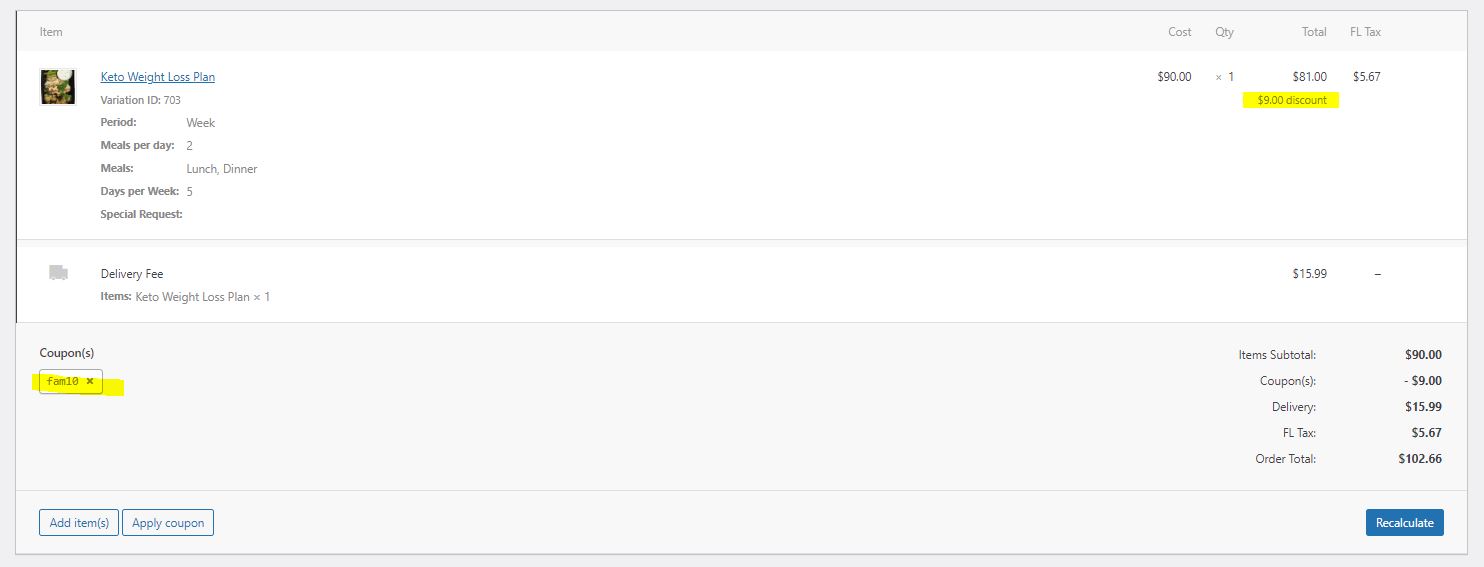
In this example we have the customer receiving 10% off ($9.00).
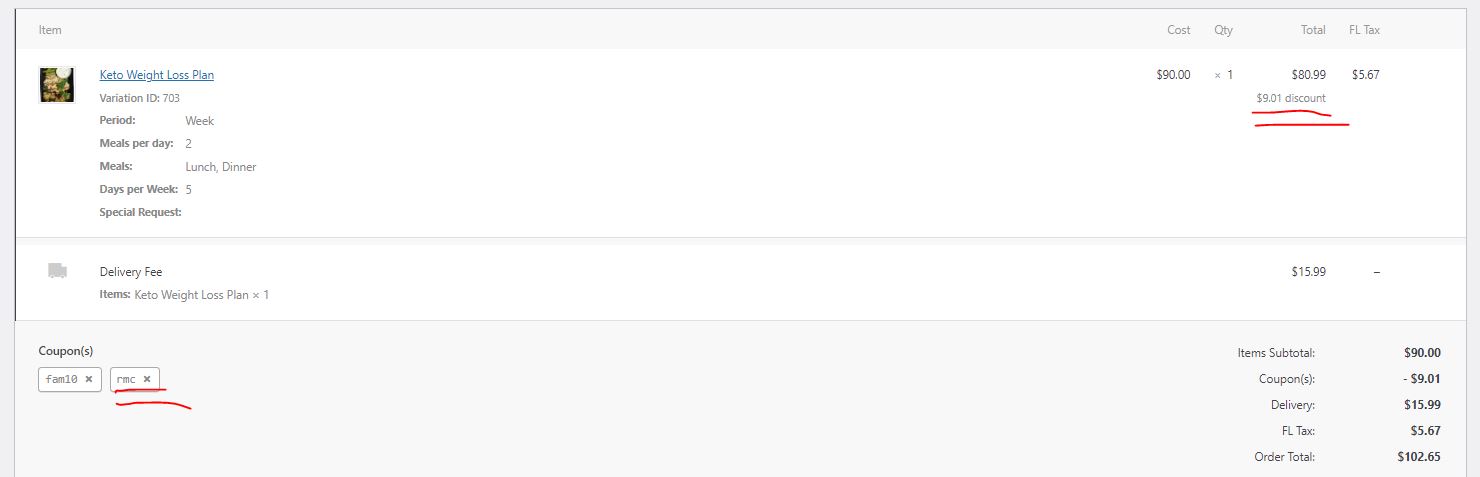
So after you add the "RMC" code you will see the discounted rate change by one cent. This means you have added the "RMC" code and the subscription is ready for you to edit the total.
Select the pencil tool to edit the total.
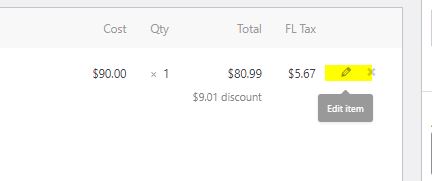
Notice that the total is reflecting that there is a discount being applied of $9.00, so we will need to add that discounted amount to the amount we are crediting first.
$18.00 + $9.00 = $27.00
The full total we are crediting is $27.00, that includes the two meals plus the 10% off that was already on the subscription.
Subtract the total cost of food alone the amount that is being credited.
$90.00 - $72.00 = $63.00
$63.00 will be the amount to edit in the total box: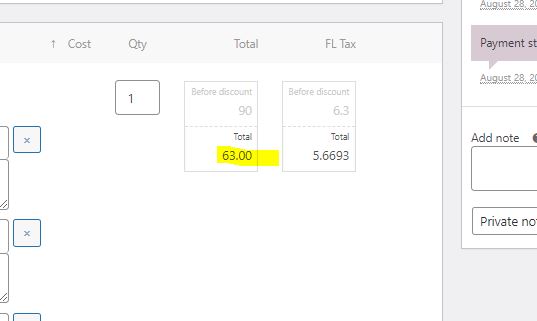
Select "Save" at the bottom right of the subscription information box.
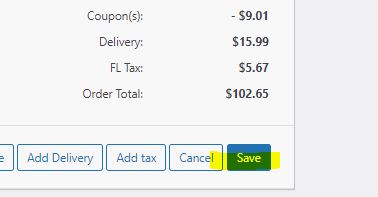
Remember you will still need to select "Recalculate" to adjust the taxes:
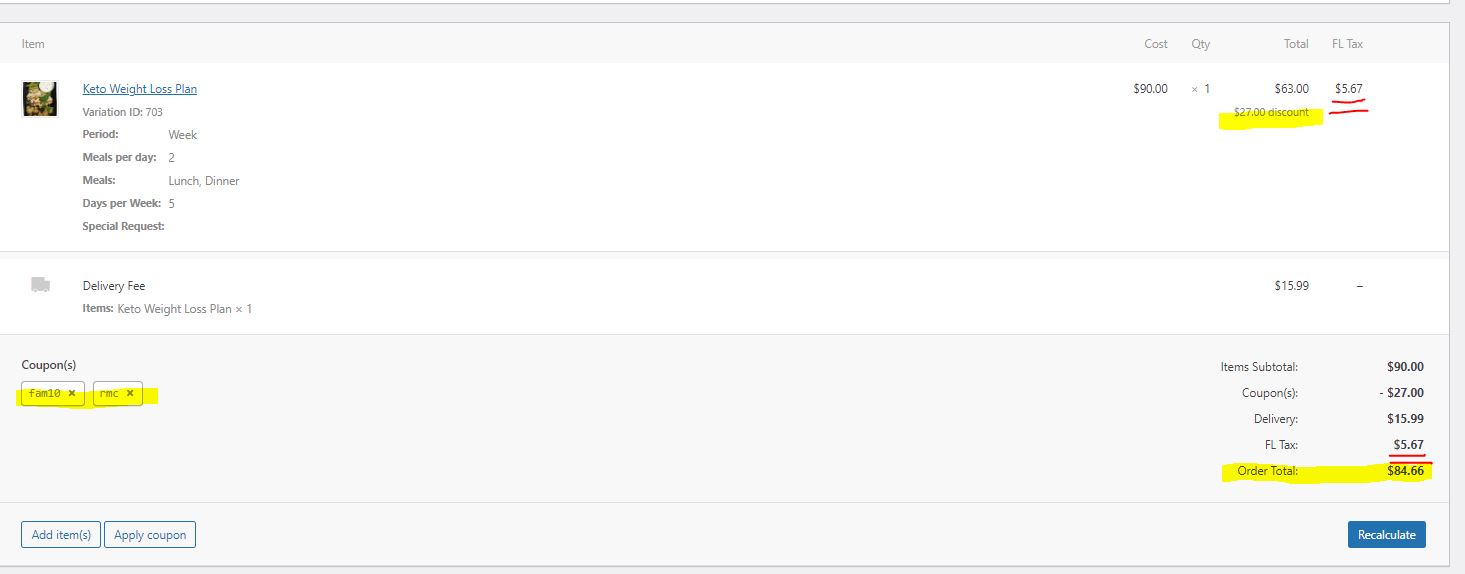
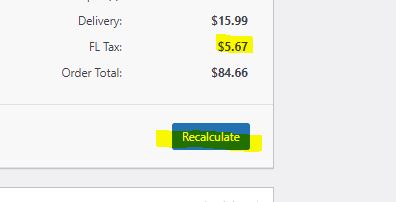
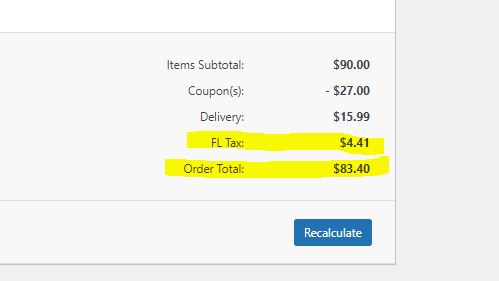
Confirm the recalculation with the pop up window that will open up and then you will see the updated totals reflected on the subscription:
If you do not want to credit an account we can also move the customers billing date.
Lets say instead of crediting two meals (One delivery) we want to adjust the billing date. You will be moving the billing date out to the next billing date.
This will mean that we will send out the customer one more delivery before running a new payment.
Its basically the same but it will not be reflected on the billing statement.
Please seek a supervisor if you want to proceed in this route. Its best to credit.
See (L2) Extra Meal Request for an alternative to crediting an account for a mess up with a meal.
Comments
0 comments
Please sign in to leave a comment.